.svg)


 0 comments

What the HiBob + Playroll Integration Does
HiBob integrates natively with Playroll, automatically syncing employee records, time-off requests, and payslips between the two platforms. Your HR team manages people in Bob, while Playroll handles global employment, compliance, and payroll behind the scenes. Together, the integration eliminates duplicate data entry, keeps leave records accurate across both systems, and ensures employees always have access to their payslips in one place.
Requirements Before You Start
Before you get started, confirm the following:
- You have a valid HiBob account with permission to create a Service User
- You are logged into Playroll with permission to manage Integrations
- You have access to HiBob System Settings (Admin-level access)
- Each employee has the same email address in both HiBob and Playroll – the email used to log in to Playroll must match either the work email in "Basic Info" or the "Personal Email" field in their HiBob profile
💡 Important: If you don't have the right access level in HiBob to create a Service User, contact your HiBob administrator before proceeding.
How to Connect HiBob To Playroll
The setup happens in two parts: first, you create and configure a Service User in HiBob, then you connect it to Playroll and configure your sync settings.
Part 1: Set Up a Service User in HiBob
A HiBob Service User is a dedicated API credential that allows Playroll to securely read and write data to your HiBob account.
Step 1: Create a Service User in HiBob
Follow HiBob's official guide on creating a Service User and retrieving your credentials: 👉 HiBob API Service Users Guide
Once created, take note of your Service User ID and Token (you'll need these in Part 2).
Step 2: Set the Correct Permissions – Features Tab
In HiBob, navigate to System Settings → Permission Groups and open the permission group assigned to your Service User.
Under the Features tab, ensure the following are enabled:
People
- Directory, Employees, Lists, About, Address, Basic info, Email, Employment, Equity, Financial, Home, Identification, Jobs, Lifecycle, Payroll, Personal, Personal contact details, Work, Work contact details
Docs
- Confidential Docs, Shared Docs
Time off
- Settings, Balance, Requests, See who's out today
Step 3: Set the Correct Permissions – People's Data Tab
Still in the same Permission Group, click the People's Data tab.
Under Access data for, ensure the Service User has access to Everyone (or the relevant employee subset if you are limiting scope).
💡 Tip: If you only want Playroll to sync a subset of employees, select "Select people by condition" or "Select people by name" instead of Everyone, and define the relevant filter.
Under the Time off section of People's Data, confirm all of the following sub-permissions are checked:
- Balance: Adjust balances, Bank overtime, See balances
Requests: Create, edit, cancel, approve, and view all time-off request fields
Part 2: Connect HiBob to Playroll
Step 4: Navigate to Integrations in Playroll
Log in to app.playroll.com. From your dashboard, click Tools in the left sidebar, then click Integrations.
Step 5: Select HiBob
On the Integrations page, locate and click the HiBob tile.
Step 6: Open the Configuration Tab and Click Connect
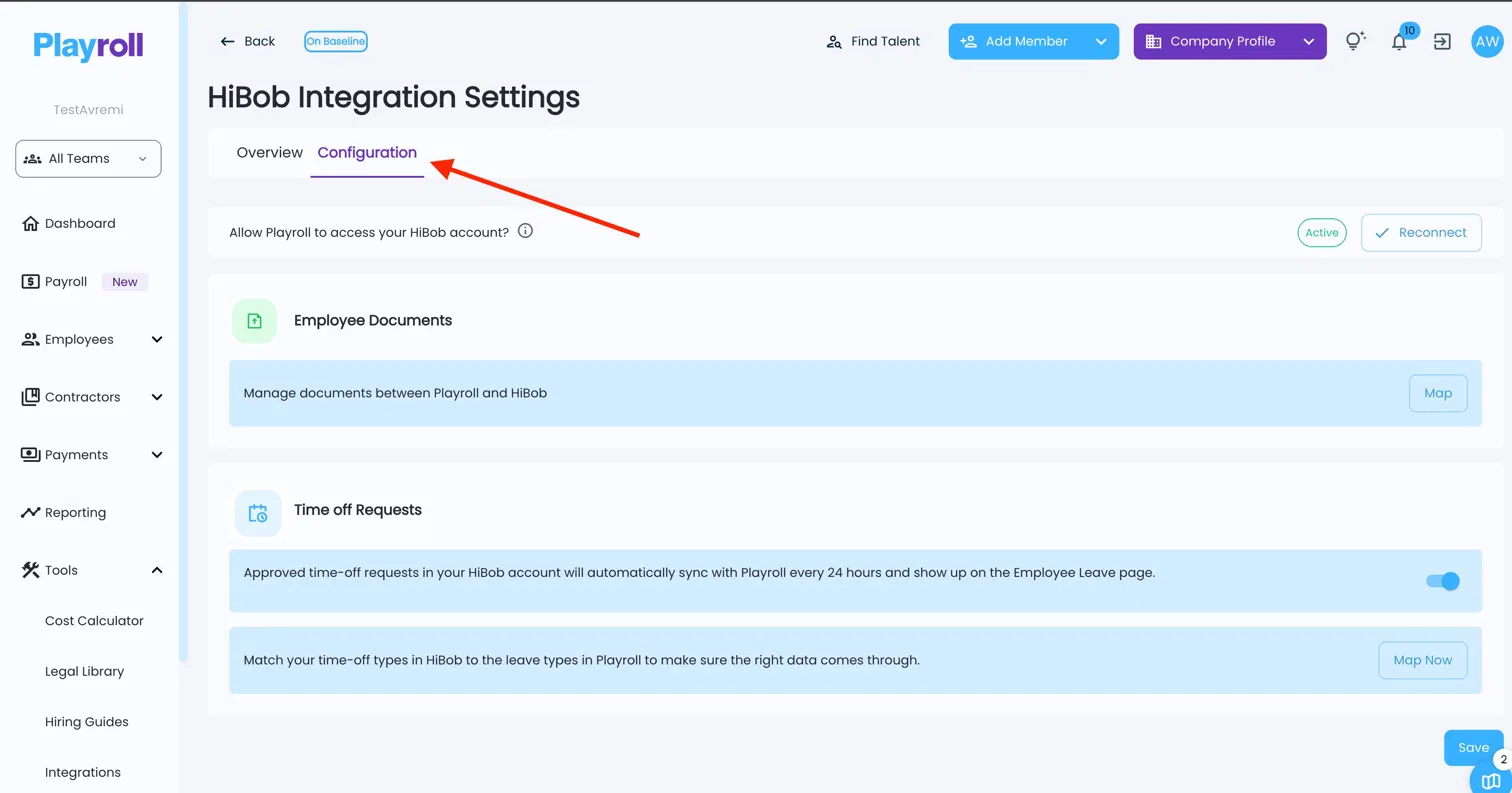
On the HiBob Integration Settings page, click the Configuration tab. You'll see the status showing Pending Authentication with a Connect button in the top-right corner. Click Connect.
Step 7: Enter Your HiBob Service User ID and Token
A modal will appear prompting you to enter your HiBob Service User ID and Service User Token. Copy and paste these from HiBob, then submit.
Part 3: Configure Sync Settings
Step 8: Enable Time-Off Sync
Once connected, under Time off Requests on the Configuration tab, toggle on the time-off sync.
💡Good to know: Approved time-off requests in HiBob will automatically sync with Playroll every 24 hours and appear on the Employee Leave page.
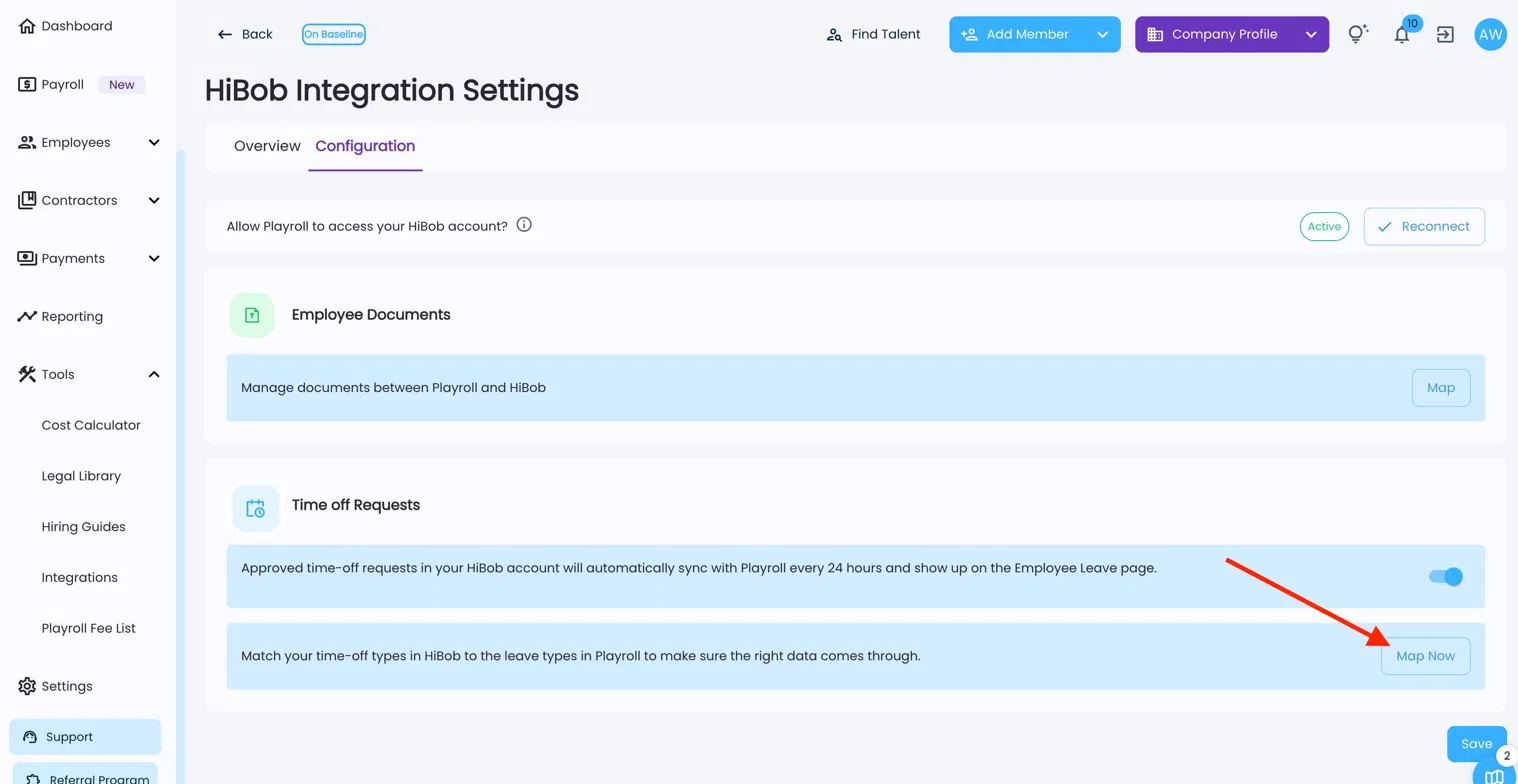
Step 9: Map HiBob Time-Off Types to Playroll Leave Types
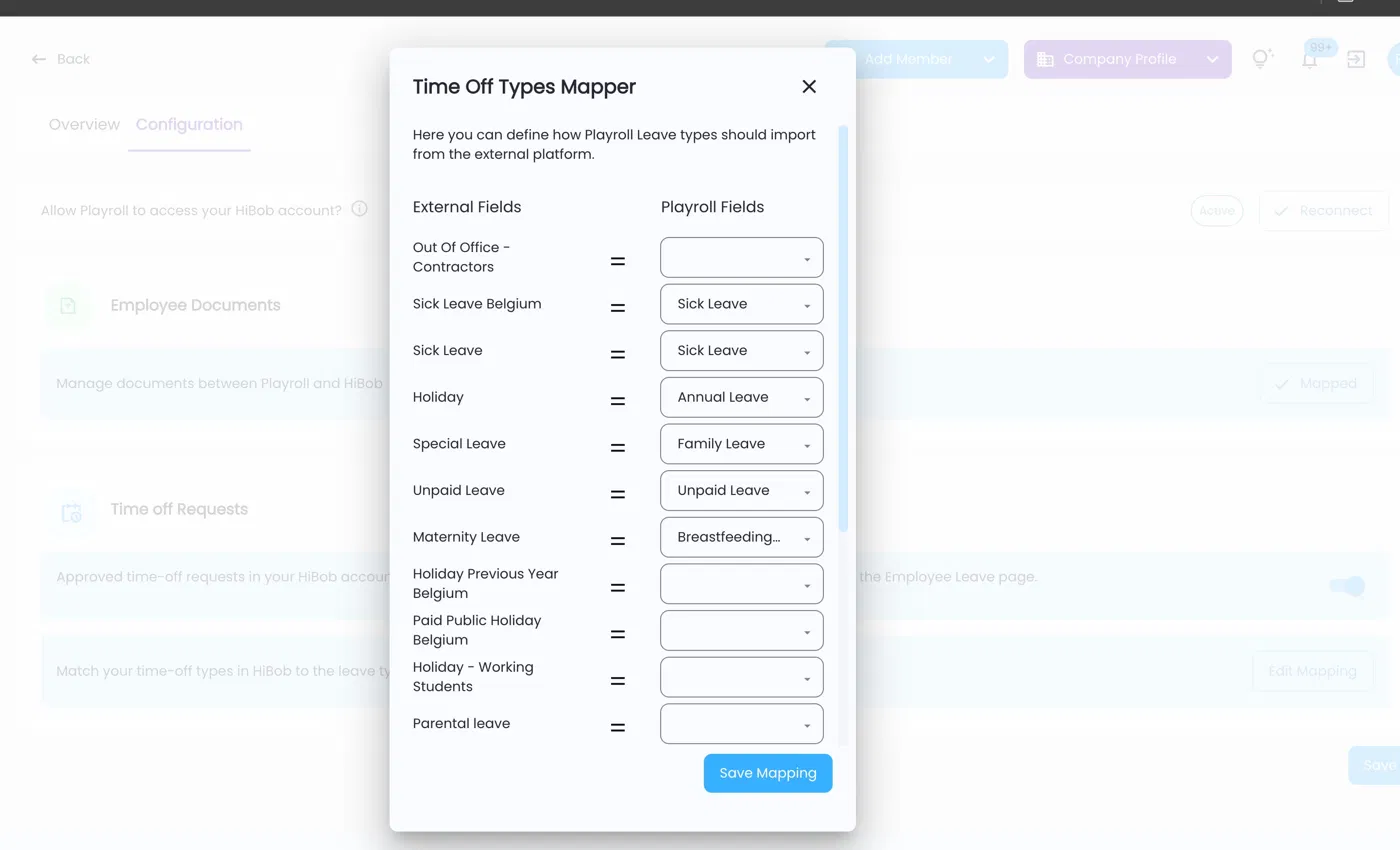
Click Map Now next to the time-off mapping row. In the Time Off Types Mapper, match each HiBob leave type on the left to the corresponding Playroll leave type on the right. Click Save Mapping when done.
💡Note: Leave types that are not mapped will not sync. If you add new leave types in HiBob later, return here to update the mapping.
Step 10: Map Payslip Documents to a HiBob Folder
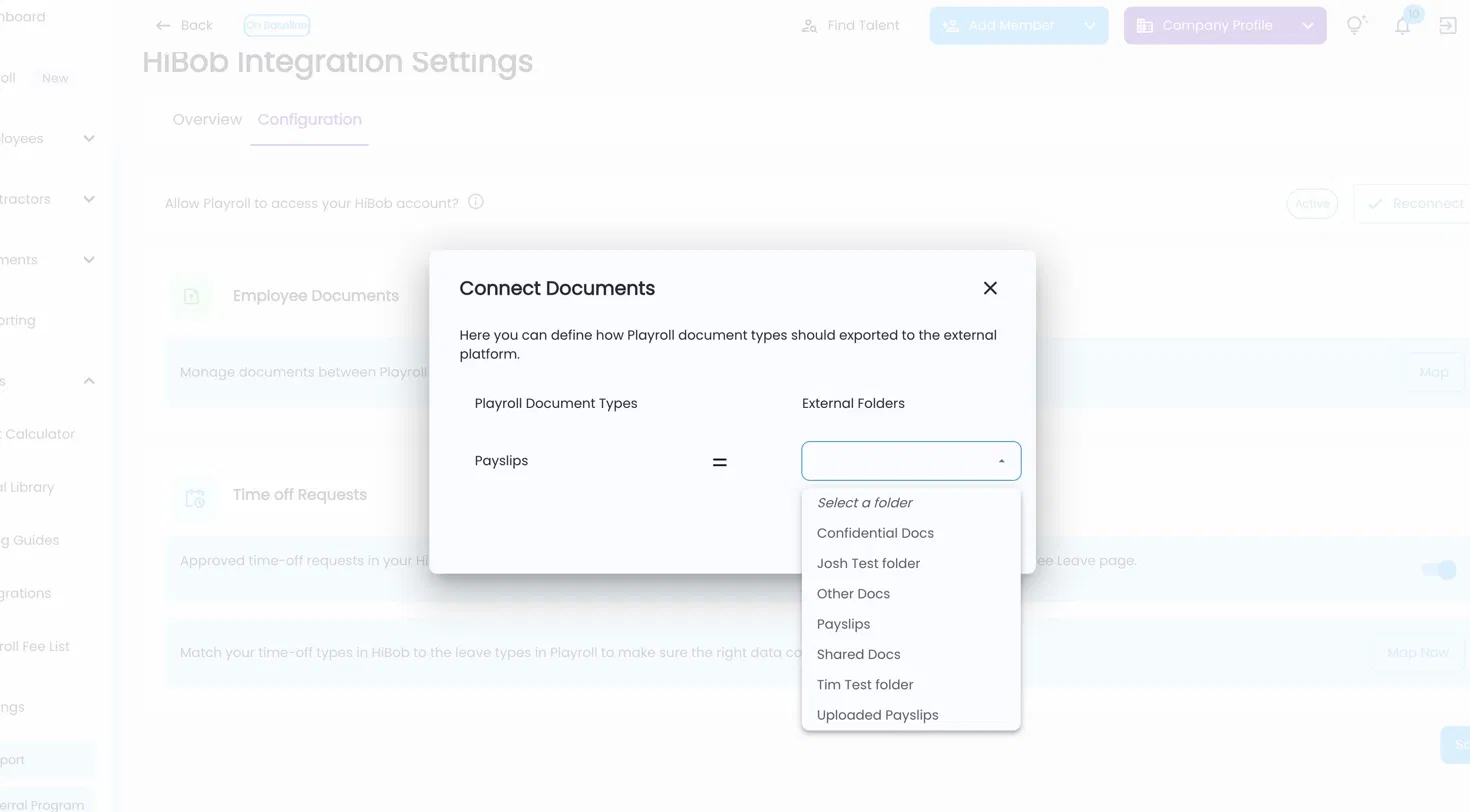
Under Employee Documents, click Map. In the Connect Documents modal, select which HiBob folder your Playroll payslips should sync to (e.g. "Payslips", "Confidential Docs", or a custom folder). Click Save when done.
Click the blue Save button on the Configuration page to confirm all settings.
Part 4: Import Your First Employee
Step 11: Add an Employee via the HiBob Import
From your Playroll dashboard, click Add Member → Add Employee in the top navigation bar.
On the Employee info screen, click the Import from HiBob button at the top of the form.
In the HiBob Employee Import modal, select the employee you want to import from the dropdown, then click Begin Import. Their details will populate automatically.
Setup Checklist
Before considering the integration complete, confirm all of the following:
✅ HiBob Service User created with all required Features and People's Data permissions
✅ Service User ID and Token entered in Playroll and status shows Active
✅ Time-off sync is toggled on
✅ All relevant HiBob leave types are mapped to Playroll leave types
✅ Payslips are mapped to the correct HiBob document folder
✅ Employee email addresses match between HiBob and Playroll
HiBob + Playroll FAQs
Why isn't the "Import from HiBob" button appearing when I add an employee?
The import button only appears once your HiBob Service User credentials have been successfully entered and the integration status shows Active on the Configuration tab. If you've just connected, try refreshing the page. If the status still shows Pending Authentication, double-check that the Service User ID and Token were entered correctly.
How long does it take for leave requests to appear in Playroll after I turn on the sync? Approved time-off requests sync from HiBob to Playroll every 24 hours. If a request was approved in HiBob today, it may take up to 24 hours to appear on the Employee Leave page in Playroll. Requests must be approved in HiBob first, as pending requests will not sync.
What happens if an employee's email doesn't match between HiBob and Playroll?
The sync relies on a matching email address to identify employees across both platforms. If the email used to log in to Playroll doesn't match either the work email or personal email in HiBob, the employee's records won't sync correctly. Ensure email addresses are updated in both systems before running an import or enabling leave sync.
Can I control which employees Playroll has access to in HiBob?
Yes. In HiBob's Permission Group settings for your Service User, you can limit access under the People's Data → Access data for section by selecting "Select people by condition" or "Select people by name" rather than Everyone. This is optional and useful if you only want Playroll to manage a subset of your workforce.

0 comments
Please sign in to leave a comment.